After downloading, do not open the DMG yet. Complete one of the preparation methods below before installing.
ByeDock’s window controls don’t fit App Store sandboxing rules, so we offer it here. The package isn’t notarized yet; macOS needs your confirmation to open it.
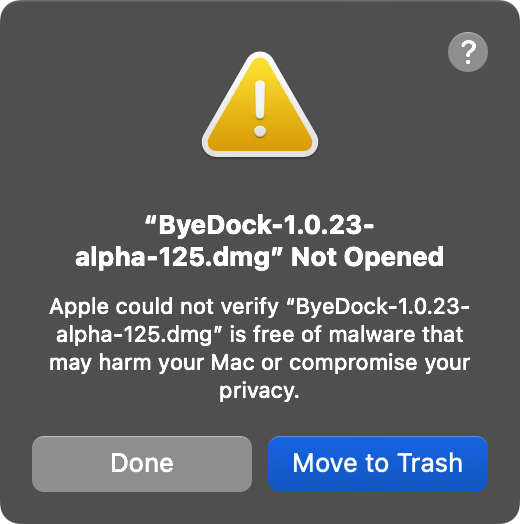
If you already tried to open the installer and saw the message below, click Done to keep the downloaded file. Do not click Move to Trash.
Example message. The filename may differ with your downloaded version.
Before installing, choose one of the two solutions below.
Option 1: Use System Settings
Open System Settings → Privacy & Security.
Scroll down to Security.
Open the DMG once. If macOS blocks it, click Done; return here and click Open Anyway beside the installer message.
Confirm with your password or Touch ID, then click Open to continue installing.
Option 2: Use Terminal
Open Terminal and copy this command (with a final space):
xattr -d com.apple.quarantine
Drag the unopened .dmg file from Downloads into Terminal. Its path fills in automatically.
Press Return to run the command, then open the DMG to continue installing.
Once you’ve completed the steps above, begin installation.
01
Install the app
Quit the old version. Open the DMG and drag ByeDock to Applications.
02
Allow Accessibility
If macOS blocks the app, follow the guidance below first. Then grant Accessibility permission when prompted.
03
Activate your license
Enter your purchase email and the license key delivered by email.
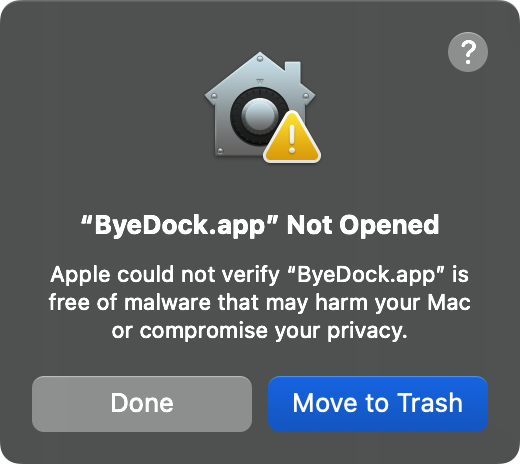
If macOS shows a similar message when you first launch the installed ByeDock app, use Option 1 again to allow it to open.
Click Done, not Move to Trash. Then follow Option 1 and click Open Anyway for ByeDock in System Settings.
Example message when you first open the installed app.
 ByeDock